
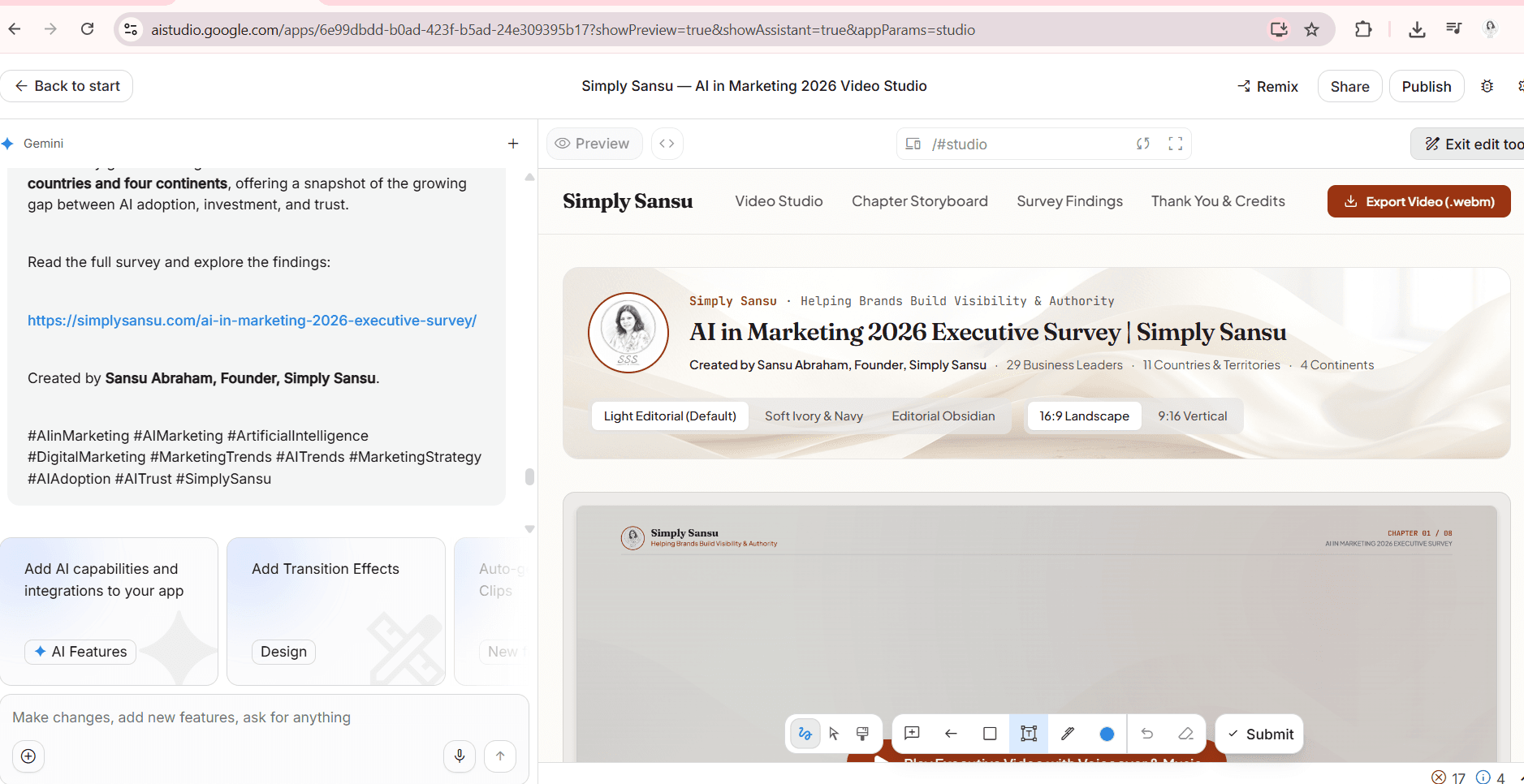
Google AI Studio Impressed Me: I Created an AI Video Version of My Survey With AI
https://simply-sansu-ai-in-marketing-2026-video-studio.ai.studio
These days, not everyone has the time or patience to read a long blog, but a short, engaging video can grab attention and communicate the same information much faster. That got me thinking about repurposing some of my blogs into videos. Then I thought, why not start with my AI in Marketing 2026 Executive Survey and turn its findings into a visual asset?
I have seen designers spend hours creating a single design or working on video production. I have also sat beside designers, explaining my content requirements, discussing what I wanted the visual to communicate, asking for changes, and sometimes going back and forth until the final version looked the way I had imagined it.
That has been part of my work for years.
But things are changing.
Gone are the days when I may have to fully rely on human designers for every creative requirement. At least for some of my work, I can now partially rely on AI designers. 😉
I recently experienced this myself when I decided to create a video version of my AI in Marketing 2026 Executive Survey.
The survey had some interesting findings, and I wanted to turn those findings into something more visual and engaging than a report or blog post.
So I started experimenting with AI video creation tools.
I tried ChatGPT, Canva, Google AI Studio and a few other tools to see how easily I could create a professional video without immediately paying for expensive software or depending entirely on a designer. And this wasn’t just an experiment based on reading feature lists. I was actually trying to create something I could use.
That made the experience much more interesting.
AI has changed how I think about video creation
Creating a video once meant editing software, footage, music, voiceovers, graphics and, most importantly, time. If you couldn’t do it yourself, you needed a designer or a video editor.
AI is changing that.
Today, I can start with my content, explain what I want and work with AI to turn the idea into a visual piece.
AI hasn’t replaced designers, and there are still projects where I would want a skilled designer involved. But for certain tasks, I no longer have to start with:
“I need a designer to make this.”
I can simply start with:
“Let me see what AI can do first.”
And that’s a significant change.
My challenge was finding a free AI video tool
There are plenty of AI video tools, but finding one that is genuinely useful without immediately paying is the challenge. Some offer limited trials, credits, or restricted output.
So I decided to test a few myself.
My question wasn’t simply, “Which AI video tool is the best?” I wanted to know which one could actually deliver a video I would be happy to use.
I wanted to know:
| What I tested | My impression |
|---|---|
| Prompt understanding | Excellent |
| Clarity of interaction | Excellent |
| Video quality | Very good |
| Flexibility for changes | Excellent |
| Professional output | Very good |
| Tool | Free option | Best for |
|---|---|---|
| Canva | Yes | Blog → video with photos, text, music |
| CapCut | Yes | Short-form videos/Reels |
| Adobe Express | Yes | Simple branded videos |
| InVideo AI | Free tier | Blog/script → AI video |
| VEED | Free tier | Script + captions + video |
I started with ChatGPT
ChatGPT was an obvious place to start because I already use it extensively for content creation, research and data-related work.
It was fast, and it helped me with the script, structure and narration. But I wasn’t at all happy with its video rendering.
The videos felt very basic, almost like something created by a novice designer. The voiceover was unattractive, the visuals were bland, and the overall result felt noticeably AI-generated.
For this particular project, it was simply too basic and lacked the visual appeal I was looking for.
Unlike many of the other content creation and data-related tasks I use ChatGPT for, video design is clearly not its forte, at least based on my experience with this experiment.
So I moved on to other tools. I wanted to see how the different tools would handle the actual video creation.
Canva was an obvious choice for me
Canva is usually my top pick for design requirements.
I have used Canva for different types of creative work, and one of the reasons I like it is that it gives me considerable control without requiring me to be a professional designer. So naturally, Canva was one of the tools I tried for my survey video. It makes it relatively easy to bring together text, graphics, animation, audio and other visual elements.
And if you already use Canva, the learning curve is fairly comfortable.
For many of my design requirements, I would still choose Canva.
But this particular experiment failed.
Because another tool eventually became my favorite.
Google AI Studio impressed me
Google AI Studio was the tool I liked most. I didn’t expect that when I started. What impressed me wasn’t simply that it could create a video.
It was the combination of how it understood my information, how it responded to my prompts, the quality of the output and how much flexibility I had to keep refining the result.
The clarity of the information
For a survey video, clarity matters. I wanted the statistics to be accurate, the information easy to understand, and the story behind the data intact. Google AI Studio handled this particularly well.
How it responded to my prompts
The first output isn’t the real test. What matters is how the tool responds when I say, “That’s not what I meant.” Can it understand corrections, make changes, improve the video and refine specific elements without starting over? This back-and-forth worked particularly well with Google AI Studio, although there was one downside.
The back-and-forth took a lot of time
Google AI Studio wasn’t fast. The communication and refinement took time: I would give instructions, wait, review, suggest changes, and repeat the process. At times, I wondered if I was spending too much time on it. But when I saw the final quality, I thought, “The wait was worth it.” I’m willing to invest more time when the result is significantly better.
The quality of the video made the wait worthwhile
The final video quality was one of the biggest reasons Google AI Studio stood out. I wasn’t looking for something that simply looked AI-generated. I wanted a video I could actually use, with visuals that supported the story, clear survey findings, standout statistics and a professional overall presentation. For this project, Google AI Studio came closest to what I wanted.
Branding is unavoidable for a business
For business content, branding is non-negotiable. Your logo, tagline, colors and identity need to stay consistent.
For my video, I simply prompted Google AI Studio to keep my Simply Sansu logo and tagline, “Helping Brands Build Visibility & Authority,” throughout the video, and it did exactly that.
I didn’t have to place the logo manually on every scene or repeat the requirement. I could communicate the content, creative direction and branding requirements in one workflow. That is another way AI is making video creation easier.
The Remix option adds another layer of flexibility
I also liked the Remix option. Instead of starting from scratch, I could take an existing version, see what worked, change what didn’t, and try a new direction. It made the video creation process more flexible and iterative.
Share and Publish options
I also liked the Share and Publish options. After creating and refining the video, I could move directly toward sharing or publishing it. https://simply-sansu-ai-in-marketing-2026-video-studio.ai.studio/
simply-sansu-ai-in-marketing-2026-video-studio
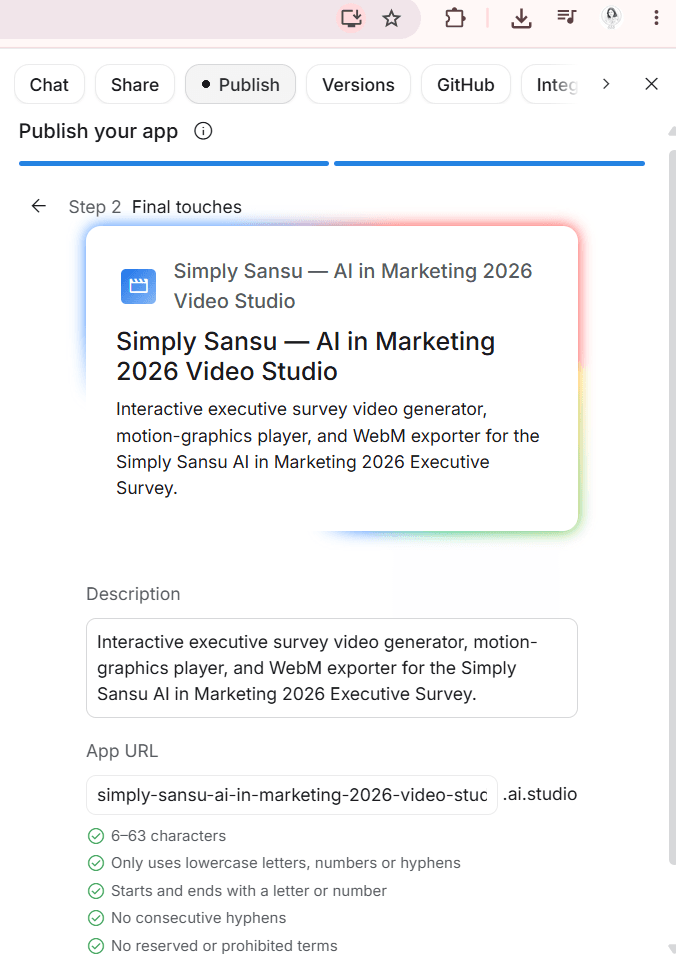
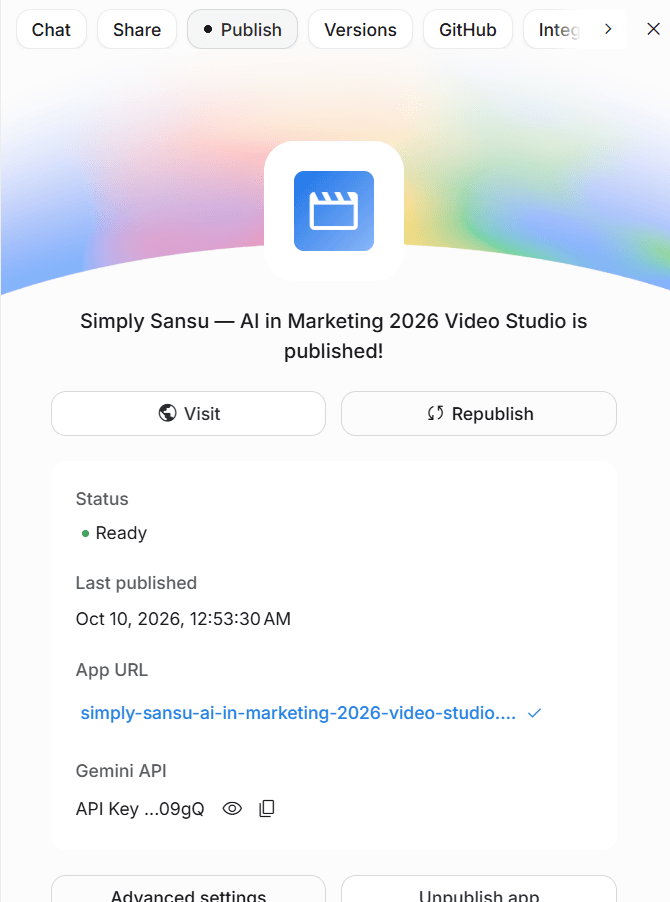
Now with the public web asset on an ai.studio subdomain anyone can access it and potentially discover my survey through it.
For me, the workflow felt simple:
Create → Review → Remix → Refine → Share → Publish
That makes the tool more practical for an actual content workflow. I was trying to create an AI-generated video version of my survey. And for this particular project, Google AI Studio beat Canva for me.
What made Google AI Studio stand out?
Clarity of information: I could communicate the survey information and the story I wanted to tell.
Prompt response: It responded well to detailed instructions and refinements.
Video quality: The final output was good enough to take seriously as a piece of content.
Changes and edits: I could keep refining rather than accepting the first result.
Flexibility: The ability to experiment, including through Remix, made the process more useful.
Professionalism: The final result felt much closer to something I could actually publish.
Branding: I could provide my logo and tagline requirements through prompts and have them incorporated into the video.
Share and Publish: The workflow didn’t stop with generation.
The quality justified the time I spent.
My verdict
After trying ChatGPT, Canva, Google AI Studio and a few other tools, Google AI Studio was my favorite. Canva is still my usual choice for design, but Google AI Studio stood out for its clarity, prompt understanding, video quality, flexibility, branding and professionalism.
Was it fast? No. The back-and-forth took time, but the wait was worth it because of the final quality.
This experiment changed how I see AI-assisted creative work. I don’t think AI replaces designers, but it gives businesses another option. For certain projects, I can now partially rely on AI instead of depending entirely on a designer.
AI has made video creation easier. The real advantage isn’t creating a video with one prompt, but being able to communicate, review, change, experiment and refine until you’re happy with the result.
For this experiment, Google AI Studio came out on top for me, not because it was the fastest, but because the final result was worth the time I invested.

Spot-on observation in this insightful piece regarding content repurposing bottlenecks. Having tested traditional clone stamping alongside dedicated browser-based inpainting on remove captions from video, the starkest difference is the roughly 80% time saved on vertical video adaptations where hardcoded text blocks active focal points. Do you still find higher frame-rate clips (60fps+) require secondary stabilization passes after subtitle removal?