
I Found 700+ Spammy Referring Domains Pointing to My Website
Sometimes, one simple SEO comparison can lead to an unexpected discovery.
Recently, I was analyzing two websites that are both relatively new. Both domains are just five months old, so I expected their SEO metrics to be somewhat comparable.
But there was a noticeable difference.
One website had a Domain Authority (DA) of 9, while my main website, where I am much more active, had a DA of 4.
That made me curious.
How could a website of the same age, where I am less active, have a higher DA than my main website?
So I started comparing their backlink profiles and referring domains.
That is when I discovered something I had not expected.
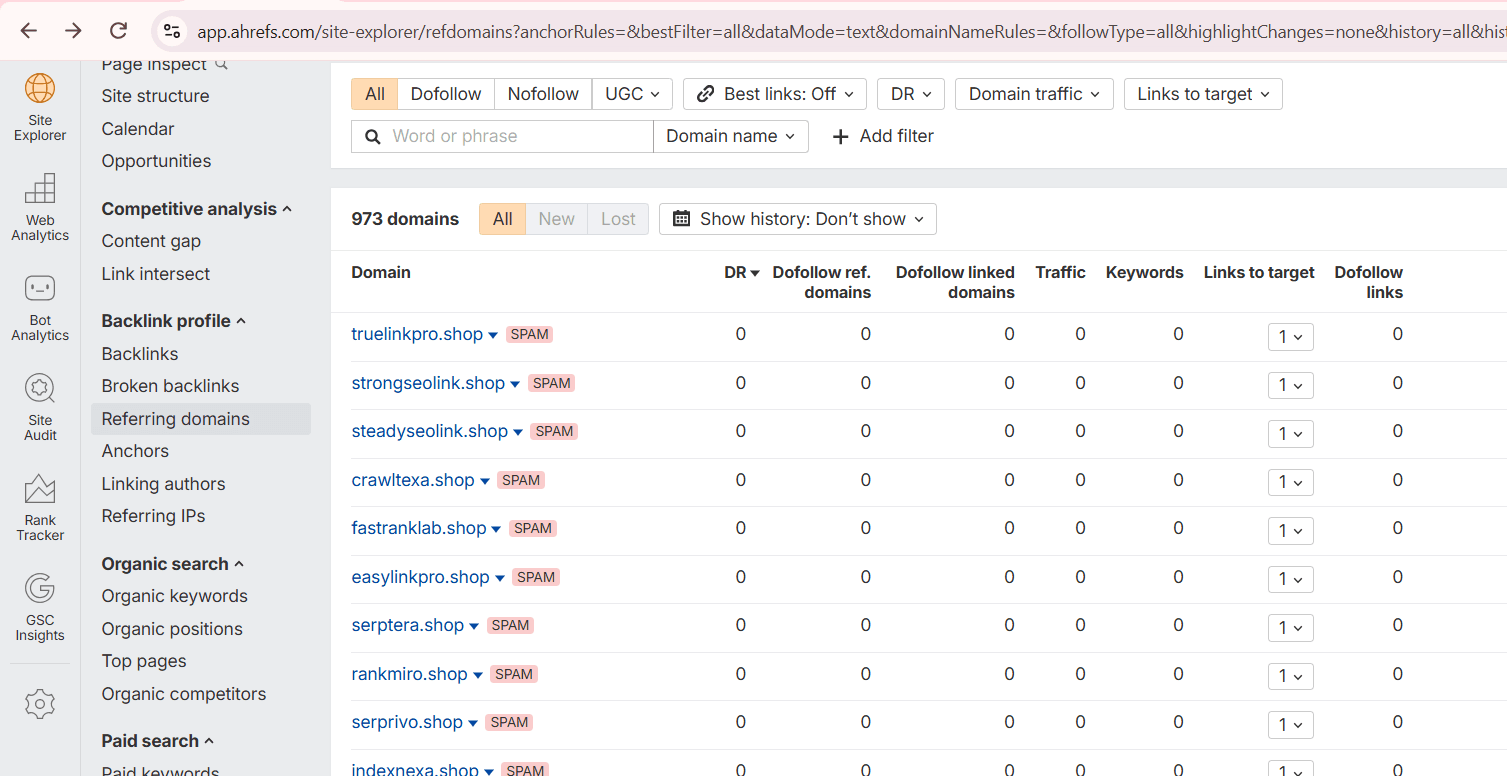
More than 700 referring domains pointing to my main website were flagged as spam by Ahrefs.
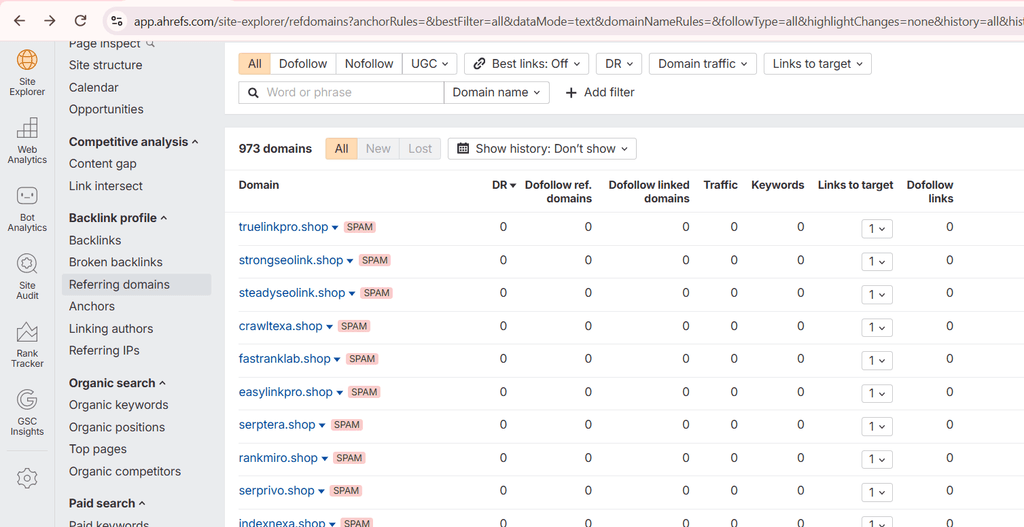
I had not intentionally built links from these websites.
This sent me down a completely different SEO rabbit hole.
The Problem: How Do You Remove 700+ Backlinks?
My first thought was simple: remove them.
But that quickly became impractical.
These were hundreds of different domains, many of which appeared to be SEO, backlink, or link-selling websites. Finding contact information for every site owner and asking them to remove a backlink would be extremely time-consuming, with no guarantee that they would respond.
So I started looking at Google’s Disavow Tool.
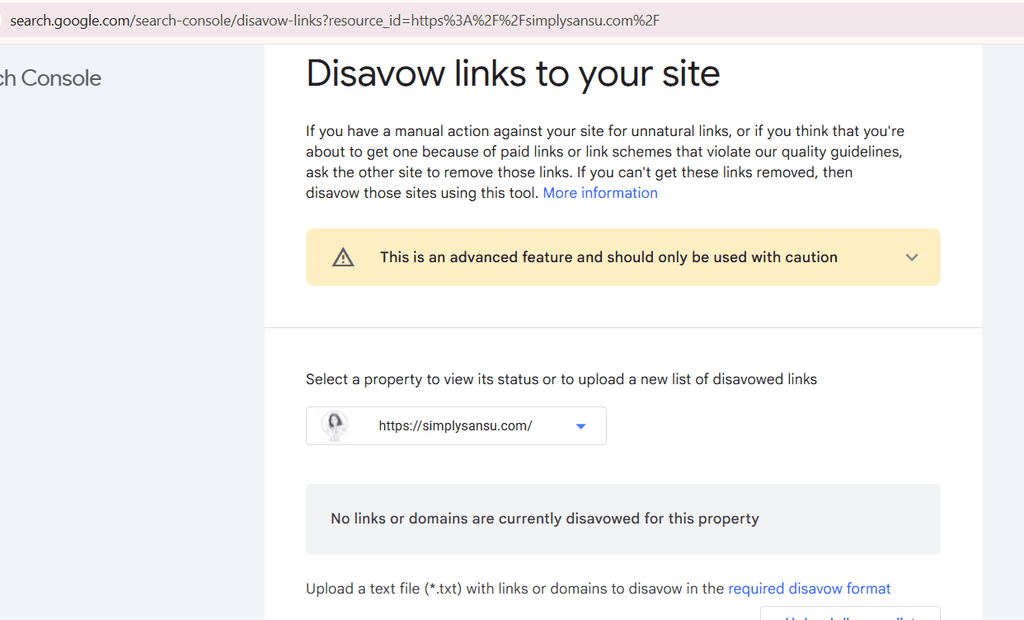
- Open Google’s Disavow Tool Google Disavow Links Tool
- Select your Simply Sansu property This is important: the Disavow Tool does not support a Domain property. You need the URL-prefix property, such as: Google specifically states this limitation. Google Help
- Click Disavow Links You’ll then get the option to upload your file.
- Choose the file. Any filename is fine. Google only requires that it ends in
.txt, and the file must be UTF-8 or 7-bit ASCII. Google Help - Upload it. Google will validate the file. If there are errors, don’t submit it until they’re fixed.
Reminder: One important point: uploading a new disavow file replaces any existing disavow file for that property, so if you’ve previously submitted a disavow list, we should check that first. Google Help
Google recommends trying to get unnatural links removed first. If you cannot get them removed, and you have a manual action or believe your site may be affected by paid links or link schemes that violate Google’s guidelines, you can use the Disavow Tool to ask Google to ignore those links.
In my case, I could not realistically contact hundreds of websites individually. I also checked Google Search Console and found no manual action or security issue. After reviewing the backlink data, I decided to disavow the spammy dofollow domains I had identified.
Why Doesn’t Google Recommend Disavow for Everyone?
Google considers the Disavow Tool an advanced feature and says most websites do not need to use it because Google’s systems can generally assess which links to trust. Google also warns that using the tool incorrectly can potentially harm a site’s performance in Search.
Google recommends considering disavow when a site has a considerable number of spammy, artificial, or low-quality links and those links have caused, or are likely to cause, a manual action.
That made me pause.
I did not want to disavow links simply because a third-party SEO tool had labeled them as spam.
I Checked Google Search Console First
Before making a decision, I checked Google Search Console.
I specifically looked at:
- Manual Actions
- Security Issues
There were no manual actions or security issues showing for my website.
I then went back to the backlink data and narrowed my review to the domains that appeared clearly spammy and had dofollow links pointing to my website.
How I Prepared the Disavow File
I decided to use a domain-level disavow approach for the domains I had identified.
The process was straightforward:
- Export the backlink/referring-domain data from Ahrefs.
- Identify the domains flagged as spammy.
- Review the domains rather than blindly disavowing every backlink.
- Focus on the suspicious dofollow domains I had identified.
- Create a plain-text
.txtfile. - Add each domain using Google’s required format:
domain:example.com
domain:anotherexample.com
Google allows domains to be specified using the domain: prefix. The file must be a .txt file encoded in UTF-8 or 7-bit ASCII.
Uploading the Disavow File
The final step was uploading the file through Google’s Disavow Links Tool.
The important thing to remember is that the tool works with URL-prefix properties, not Domain properties.
Once uploaded, Google says it can take a few weeks to incorporate the list as it recrawls and reprocesses the relevant pages. The disavowed links can also continue to appear in link reports, so seeing them in Ahrefs or Search Console afterward does not necessarily mean the disavow failed.
The Challenges With Disavowing Backlinks
The biggest challenge is deciding what actually needs to be disavowed.
A backlink tool’s spam score is not the same thing as a Google penalty.
There is also the risk of disavowing a legitimate link by mistake.
Another challenge is that you cannot simply delete backlinks from websites you do not control. Google recommends trying to remove problematic links where possible before using the Disavow Tool.
And finally, there is no guarantee that disavowing a large number of backlinks will increase your DA, rankings, or traffic.
What Happens Next?
This is not a story about disavowing 700+ links and suddenly seeing rankings improve.
I don’t know what will happen yet.
For me, this started with a simple comparison between two websites and ended with a much deeper look at my backlink profile.
Now I will monitor the website and see whether anything changes over the coming weeks and months.
Sometimes, SEO starts with a question you did not even know you needed to ask.
Show less