How Canva Helps Me Create Better Content
Share this article:
While planning content around special days, I was thinking about creating something for Chicken Boy Day. I wanted to experiment with different formats—a carousel, a GIF, and presentation slides—all around the same idea. This is where Canva made the process simple for me.
Regardless of the format, I could take one idea and turn it into different types of content without having to start from scratch each time. This is one of the reasons Canva has become a regular part of my content creation workflow.
And Chicken Boy Day wasn’t the only time I’ve found Canva useful. I regularly use it for carousels, social media images, presentations, business brochures, and ebooks.
Content creation is no longer limited to writing a blog post and publishing it.
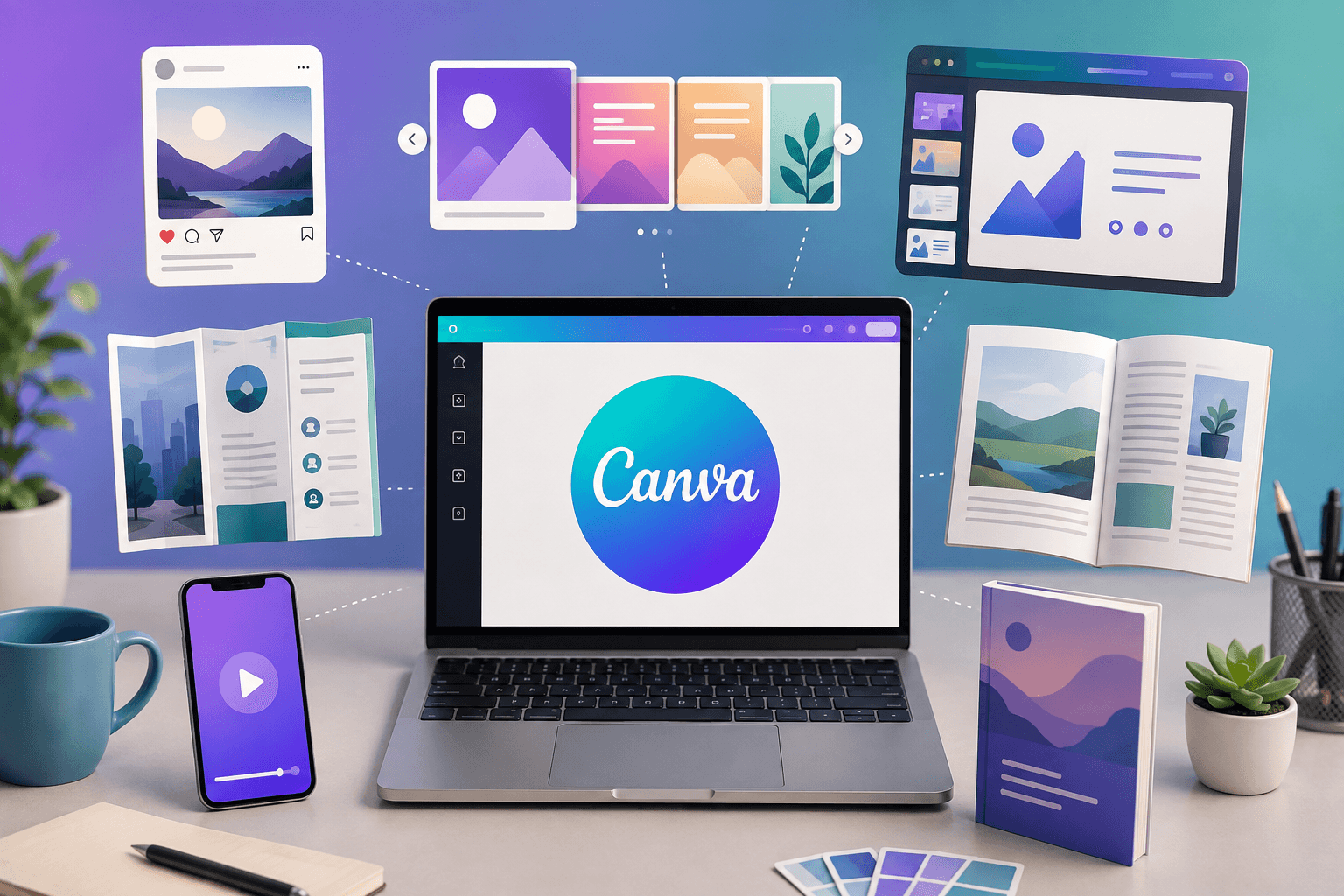
Today, the same idea may need to become a social media post, carousel, presentation, ebook, brochure, infographic, or visual for a website.
This is where Canva has become one of the tools I regularly use in my content creation workflow.
I use Canva not simply to make content look attractive, but to turn an idea into different visual formats depending on the audience and purpose.
Canva itself positions its Visual Suite as a platform for creating presentations, social content, documents, websites, print materials and more, all within one connected workflow.
For me, the biggest advantage is simple:
I can take my own ideas and turn them into personalised content without needing to be a professional graphic designer.
1. Canva to Create LinkedIn Carousels
One of my most frequent uses of Canva is creating LinkedIn carousels.
A blog post can contain a lot of information, but people scrolling through LinkedIn may not stop to read all of it.
A carousel allows me to break one idea into smaller, easy-to-follow sections.
For example, I recently created a carousel around the marketing lesson from Chicken Boy.
Instead of simply writing about the story, I turned the idea into a sequence:
What can a giant chicken teach us about marketing?
Then:
The business disappeared.
The mascot didn’t.
Then I moved into the bigger marketing lesson:
Visibility ≠ Memorability.
This is where Canva becomes useful. I can control the layout, typography, images and overall visual flow of each slide while keeping the content consistent.
2. Social Media Post Images
I also use Canva to create individual social media graphics.
Sometimes a full carousel isn’t necessary.
A single strong idea can work better as one image.
For example, if I have a short marketing lesson, a quote, a statistic or an observation from my own experience, I can turn it into a simple visual rather than publishing it only as text.
Canva provides templates and design elements for social media, making it easier to create different formats without starting from scratch every time.
But I don’t simply pick a template and fill in the blanks.
I personalise it.
I change the colours, fonts, wording, imagery and layout to make the design fit the message and my brand.
That distinction matters.
3. Presentations
Canva is also part of my presentation workflow.
Whether I’m preparing a business presentation, explaining a marketing concept or putting together information for an audience, I can use Canva to organise the content visually.
Instead of having slide after slide filled with paragraphs, I can use:
- Headings
- Visuals
- Charts
- Icons
- Short explanations
- Highlighted points
- Consistent branding
Canva currently supports presentations alongside Docs, social content, video, websites and other formats within its Visual Suite.
For me, this makes it easier to keep the content and visual presentation connected.
4. Business Brochures
Another practical use is business brochure or pricing brochure creation.
A brochure needs to communicate quite a lot in a limited space:
- Who you are
- What you offer
- Why people should work with you
- Your services
- Your contact information
Canva makes it easier to structure all of this visually.
This is particularly useful for small businesses and individuals who may not have a dedicated designer for every piece of marketing material.
Canva’s design tools include brochure formats and other print materials, alongside digital content.
5. Ebooks
I also use Canva for ebook creation.
This is particularly useful when I want to turn a longer piece of content into something more structured and downloadable.
For example, my website features ebooks including “From 53 to 93: My Website Performance Optimization Journey With PageSpeed Insights.“ It documents my experience of improving a WordPress website’s PageSpeed performance, including the lessons, mistakes and tools involved.
An ebook isn’t simply about putting text into a PDF.
The presentation matters.
Readers need headings, sections, visual breaks, examples and a layout that makes a longer document easier to consume.
Canva is particularly useful here because its document tools are designed for visual documents, including ebooks, reports and playbooks.
6. Personalized Content
This is probably the part of Canva I find most useful.
I don’t want my content to look like everyone else’s.
A template can give me a starting point, but I don’t want the finished design to look like a template.
I personalise my content based on:
- The topic
- The audience
- My brand
- The platform
- The purpose of the content
- The message I want people to remember
For example, a LinkedIn carousel needs a different approach from a business brochure.
An ebook needs a different structure from a social media image.
A presentation needs a different visual rhythm from an Instagram post.
The content should determine the design—not the other way around.
7. One Idea Can Become Multiple Pieces of Content
This is where Canva fits particularly well into my broader content strategy.
Suppose I write a blog post.
I don’t have to stop at the blog.
I can turn that one idea into:
Blog → LinkedIn carousel → Social media graphic → Presentation → Ebook section → Infographic
That doesn’t mean copying the same content everywhere.
It means repurposing the core idea for different audiences and formats.
Canva’s current Visual Suite is built around this kind of cross-format workflow, allowing content to move between formats such as presentations, social posts, documents and websites.
Canva Doesn’t Replace the Idea
This is something I think is important.
Canva can help me create the design.
It doesn’t decide what I should say.
The idea still comes first.
The message comes first.
The audience comes first.
The design supports the content.
This is especially important now that AI has made content creation and design faster. The temptation is to create something simply because we can create it quickly.
I would rather start with:
What am I trying to communicate?
Then ask:
What’s the best format for communicating it?
And finally:
How can Canva help me present it better?
My Experience With Other Design Platforms
I’ve tried several other design platforms, and while many of them offer useful features, I often found limitations that became frustrating after investing hours into a project. Some platforms allow you to create only a specific number of pages or access certain features before asking you to upgrade to a paid plan. Having to stop midway or recreate hours of work elsewhere can be incredibly frustrating. Canva has been different for me because I can use it as a completely free platform for my everyday content creation needs, without worrying about reaching a page limit and losing the work I’ve already put into a project.
A Few Limitations
Although Canva has become one of my go-to tools for content creation, it isn’t perfect. Some of the more advanced features, templates, graphics, and elements are available only with a paid plan. At times, finding the exact design element or template I have in mind can also take some experimentation. Like any design platform, there can be a learning curve when you’re trying to create something more customised rather than simply using a ready-made template. But for my regular content needs, the free version has been more than sufficient.
Final Thoughts
Canva has become much more than a tool I use to make pretty graphics.
For me, it is part of my content creation and content repurposing workflow.
I use it for:
Carousels.
Social media images.
Presentations.
Business brochures.
Ebooks.
And I can adapt each piece to suit the audience and purpose.
The biggest benefit isn’t simply that Canva makes designing easier.
It’s that it gives me the flexibility to take my ideas and turn them into different forms of content without losing my own voice and perspective.
That is what makes it useful to me.
The tool creates the format.
The idea, experience and perspective still have to come from you.