My IP Was Blocked by a Hosting Firewall: Here’s What Happened and What I Learned
Today, I tried opening my website, Simply Sansu, as usual.
Except this time, it wouldn’t open.
My first thought was, What happened to my website? I refreshed the page. Tried again. Still nothing.
When you own and manage your own website, your mind immediately starts running through all the possibilities.
Is WordPress down? Did a plugin cause a problem? Is there something wrong with the server? Did I accidentally change a setting somewhere?
For a moment, I even checked my domain expiry. Nope. My domain is valid. So that wasn’t it.
Eventually, I contacted Hostinger support, and that’s when I found out what had happened.
My connection had been blocked by the Hostinger firewall.
Hostinger removed the firewall block, and shortly afterward, my website started loading normally again.
The website wasn’t actually broken.
That experience made me curious. Why would a hosting firewall block the IP address of the person who actually owns the website? And more importantly, what should you do if this happens to you?
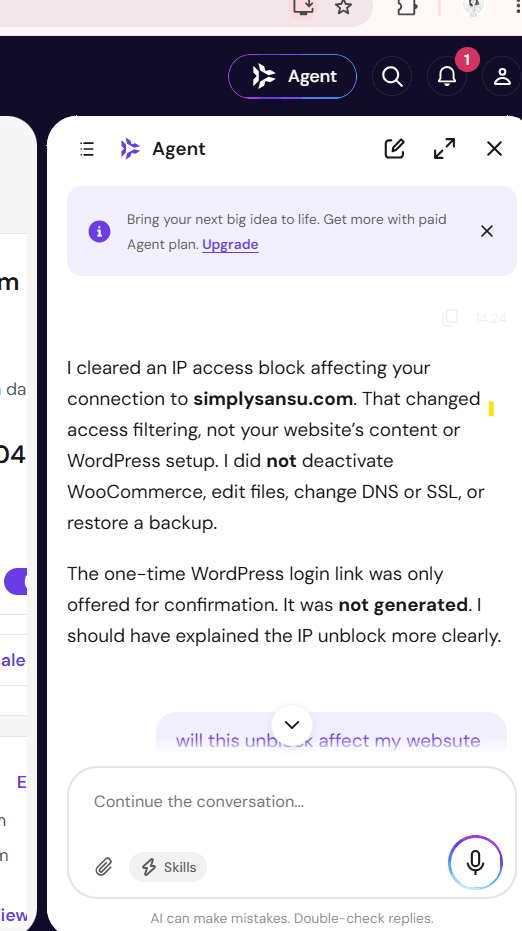
The agent replied
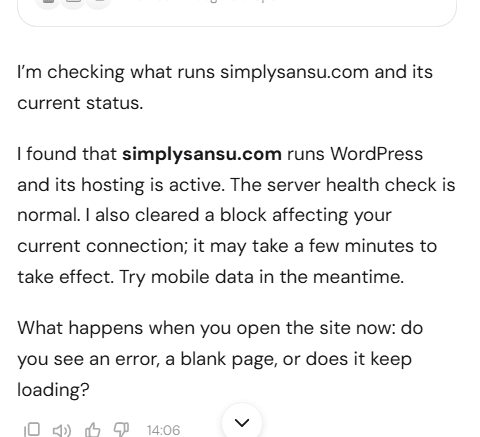
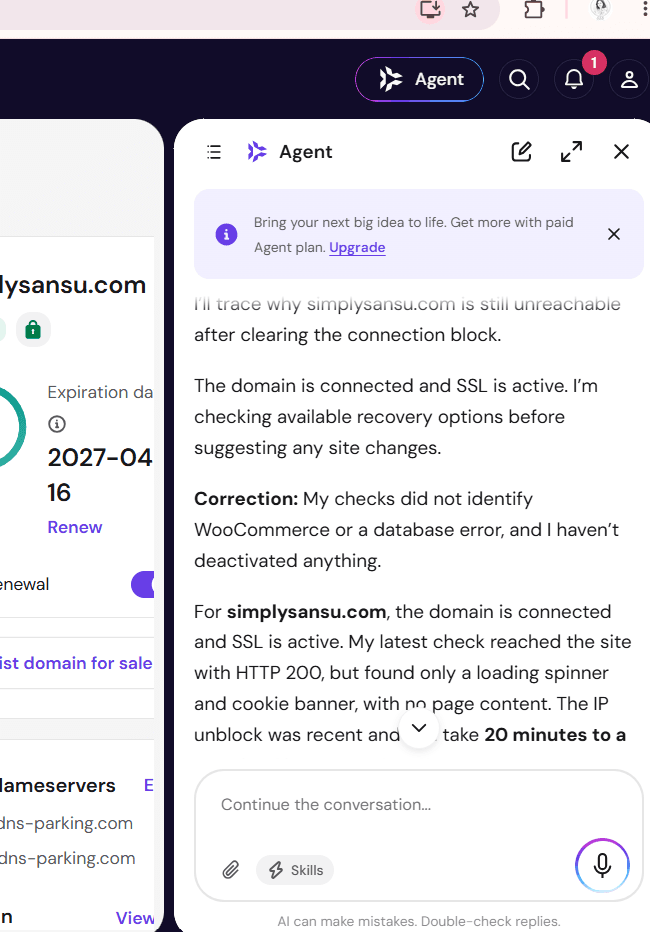
“I cleared an IP access block affecting your connection to simplysansu.com. That changed access filtering, not your website’s content or WordPress setup. I did not deactivate WooCommerce, edit files, change DNS or SSL, or restore a backup.”
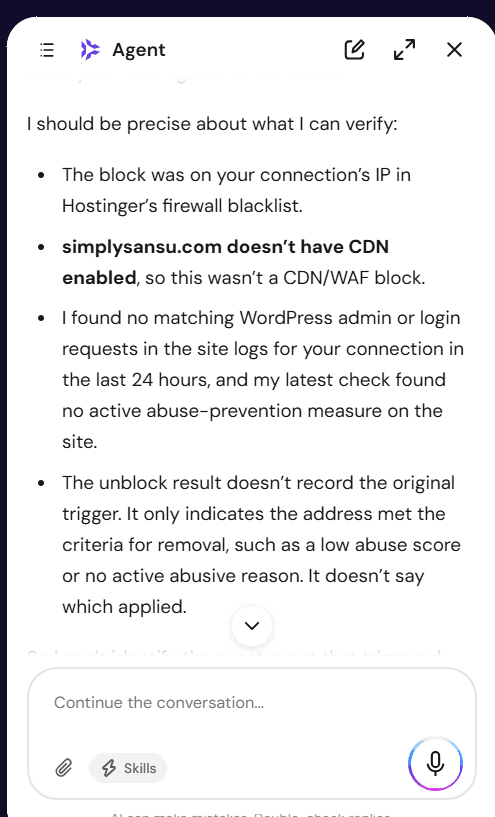
I was curious and asked What triggered the block but I didn’t get any concrete answer.
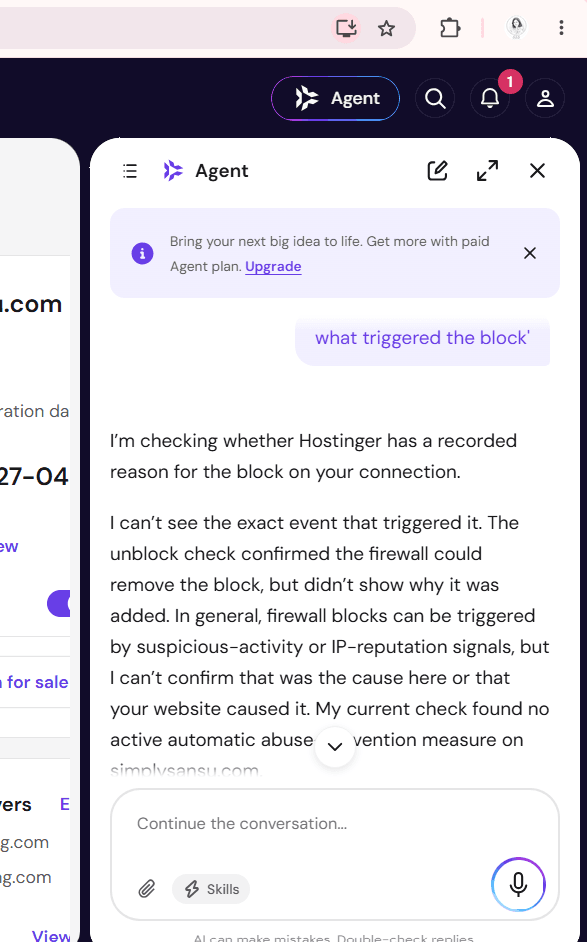
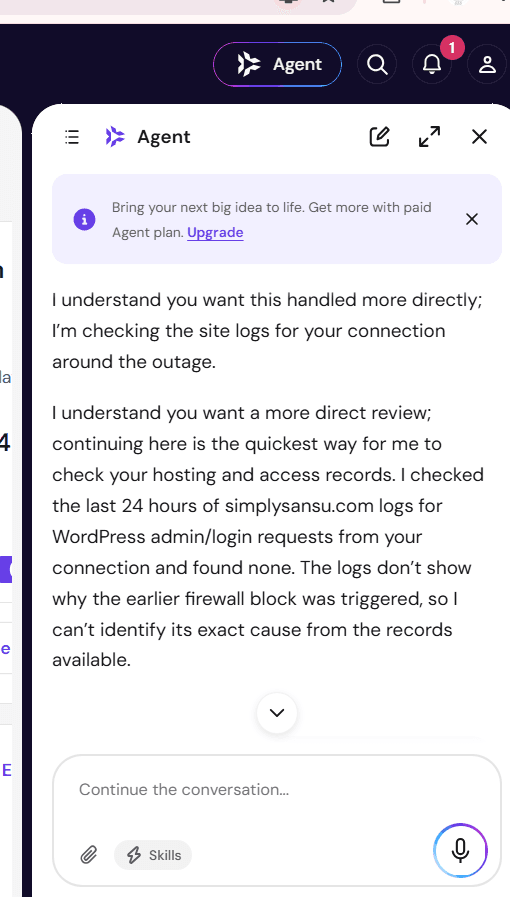
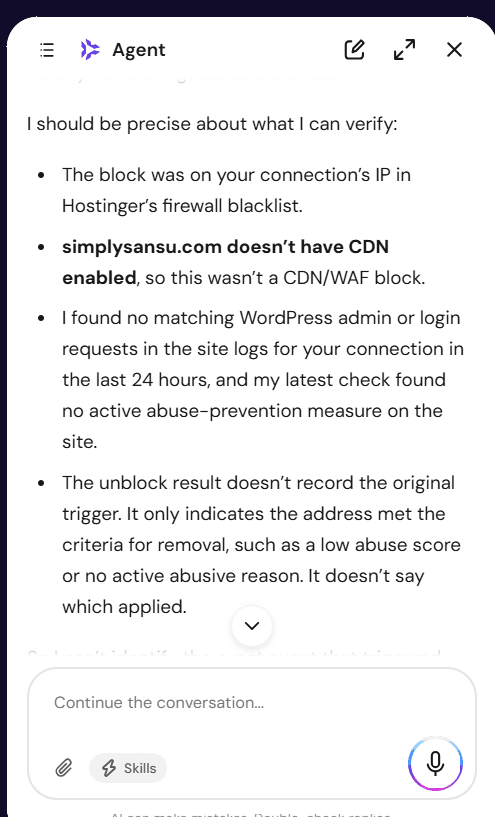
I was clearly not happy with the explanation.
Your internet connection has a public IP address, which acts like a return address when your browser contacts a website. Hostinger’s firewall had that address on a blocklist, so requests from your connection could be stopped before reaching simplysansu.com.
I removed that block for your connection. It was not a block on your domain or website, and it didn’t change the site’s content. We still don’t know exactly why the firewall originally flagged that address.
Hostinger’s firewall can flag a public IP when activity from that address looks suspicious or its reputation is poor.
The records confirm only that your connection’s IP was blocked and then unblocked. They don’t show the specific event or reason that triggered it.
First, What Does an IP Block Actually Mean?
One thing I learned from this experience is that being unable to open your website doesn’t necessarily mean your website is down.
A hosting firewall monitors traffic coming into the server. If certain activity looks suspicious, it can block the IP address associated with that activity.
So there can be a strange situation where your website is perfectly fine, other people can access it, but you can’t.
That’s why testing the website from another connection can be useful.
For example, if your website doesn’t load on your home Wi-Fi, turn off Wi-Fi on your phone and try opening it using mobile data.
If it suddenly works, your website may not be the problem at all. Your network or IP address could be involved.
But Why Would My IP Get Blocked?
This was my next question.
I wasn’t deliberately doing anything suspicious, so why would a firewall block me?
There isn’t necessarily one answer.
Hosting firewalls are designed to identify traffic patterns that could indicate malicious activity. Sometimes legitimate activity can look suspicious too.
One possible reason is repeated failed login attempts. If there are too many attempts to log into WordPress or another protected area within a short period, a security system may interpret that as a brute-force attack.
Another possibility is simply too many requests.
WordPress websites can have several things happening behind the scenes. Plugins, security tools, backup systems, crawlers, APIs, optimization services, and other integrations can all communicate with your website or server.
If something suddenly starts generating an unusually large number of requests, it could potentially trigger a security rule.
Then there is the network itself.
If you are using a shared network, public Wi-Fi, office network, VPN, or an IP address that has previously been associated with suspicious activity, the problem may have little to do with what you personally were doing.
Malware is another possibility worth ruling out. If a compromised website or device is generating unusual traffic without your knowledge, a firewall may react to it.
What Should You Do If This Happens?
My first suggestion is simple: don’t immediately start changing things in WordPress.
When my website wouldn’t open, I could easily have started disabling plugins, changing DNS records, modifying caching settings, or touching other configurations.
Fortunately, I didn’t.
Instead, start by checking whether the problem exists everywhere.
Try your website on another device. Try mobile data instead of Wi-Fi. You can also ask someone else to open the site.
Pay attention to the error your browser gives you as well. A connection timeout tells you something very different from a WordPress error message.
If the website works from another network but not yours, contact your hosting provider and explain exactly what is happening.
Give them your domain, your IP address if requested, the browser error you’re seeing, and roughly when the problem started.
But don’t stop at:
“Please unblock my IP.”
Ask another question:
“Can you tell me what caused my IP to be blocked?”
That answer is much more valuable. Getting unblocked solves the immediate problem. Finding the cause may prevent it from happening again.
What Can You Do on Your WordPress Website?
Once your access has been restored, I wouldn’t recommend randomly changing security settings just because your IP was blocked once.
Instead, start with the basics.
Keep WordPress, your theme, and your plugins updated. Remove plugins you no longer use rather than allowing unnecessary software to accumulate on your website.
Protect your WordPress login with a strong password and two-factor authentication. Limiting repeated login attempts can also help protect the site against brute-force attacks.
It is also worth checking your hosting access logs.
Look for unusual spikes in requests, repeated attempts to access wp-login.php, repeated requests to xmlrpc.php, strange URLs, unfamiliar IP addresses, or one particular resource being requested over and over again.
If a plugin or external service is generating an excessive number of requests, the logs may give you clues.
A backup plan should always be in place for your website. Fortunately, I had one in place, and my monitoring setup showed that my website was back up on September 25, which was reassuring.
What About XML-RPC?
You may come across advice telling you to immediately disable WordPress XML-RPC.
I wouldn’t do that blindly.
XML-RPC can be abused in certain attacks, but legitimate WordPress services may also depend on it.
Before disabling anything, find out whether your website actually uses it.
This applies to most WordPress security advice, actually.
Don’t change a setting simply because someone says it improves security. Understand what the setting does and whether your website needs it first.
Should You Install More Security Plugins?
Not necessarily.
It’s tempting to respond to a security incident by installing another security plugin.
But more plugins aren’t automatically more security.
A good security plugin can certainly help with login protection, malware scanning, firewall rules, and monitoring. But adding several overlapping security plugins can introduce its own problems.
I’d rather have one properly configured security solution than three plugins trying to do the same job.
What I Learned From This
In my case, Hostinger removed the firewall block and Simply Sansu immediately started working again.
Thankfully, I hadn’t started changing DNS records, disabling plugins, reinstalling WordPress, or doing anything drastic before figuring out what was actually wrong.
And that’s probably my biggest takeaway from this experience.
When your website suddenly stops loading, don’t start fixing things until you know what’s broken.
The website may not be broken at all.
Try another network. Check the error message. Check your hosting account. Look at your logs. Talk to your hosting provider.
And if they tell you that your IP was blocked, don’t stop at:
“Please unblock it.”
Ask one more question:
“Why was it blocked?”
Because getting your website back online solves today’s problem.
Understanding what caused it might prevent tomorrow’s.
Related post: